
|
Getting your Trinity Audio player ready...
|
As you start mastering Zoho Sheets, you’ll realize that the real power lies beyond simple formulas like SUM() or IF(). Advanced formulas allow you to automate reports, build dynamic dashboards, and clean data without manual effort.
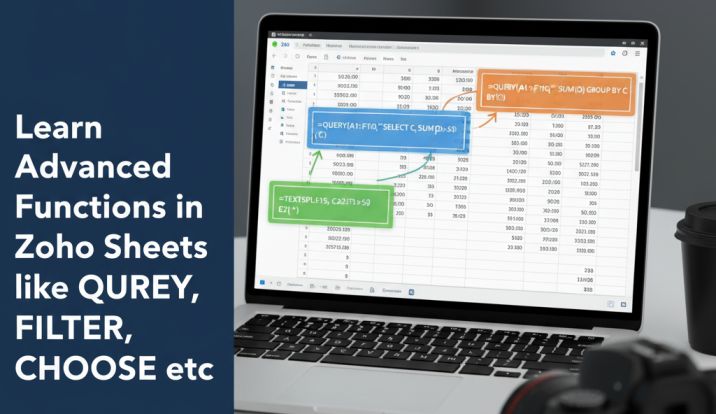
Functions such as QUERY(), UNIQUE(), FILTER(), OFFSET(), INDIRECT(), CHOOSE(), TEXTBEFORE(), TEXTAFTER(), and TEXTSPLIT() make Zoho Sheets a strong analytical tool—comparable to Excel and Google Sheets, yet with its own powerful twist.
In this article, we’ll explore these advanced functions in Zoho Sheets, their syntax, and 2–3 real-world examples for each to help you apply them confidently in business or data analysis tasks.
1. QUERY Function
Purpose:
The QUERY function allows you to extract and manipulate data using SQL-like commands. It’s extremely useful when you have large datasets and need to summarize or filter data dynamically.
Syntax:
=QUERY(data_range, "query_expression", [headers])
Example 1: Filter High-Performing Sales
=QUERY(A1:E100, "SELECT A, B, D WHERE D > 5000", 1)
➡ Fetches all sales records where the Sales Amount is greater than ₹5000.
Example 2: Group Sales by Region
=QUERY(A1:E100, "SELECT C, SUM(D) GROUP BY C", 1)
➡ Returns total sales per region, perfect for summary reports.
Example 3: Sort Data
=QUERY(A1:E100, "SELECT * ORDER BY D DESC", 1)
➡ Displays data sorted by highest sales amount.
Real-world use: Monthly sales dashboards, performance reviews, and KPI tracking.
Also Read: All About QUERY Function
2. UNIQUE Function
Purpose:
Removes duplicates from a column or dataset, showing only distinct values.
Syntax:
=UNIQUE(range)
Example 1: Unique Customer Names
=UNIQUE(B2:B100)
➡ Returns each customer name only once.
Example 2: Unique Products Sold
=UNIQUE(A2:A100)
➡ Helps to count or create dropdowns for unique products.
➡ Quickly generates region lists for dashboards.
Real-world use: Data validation lists, inventory management, and lead deduplication.
Also Read: All About UNIQUE Function
3. FILTER Function
Purpose:
Filters data that meets specific conditions, just like SQL’s WHERE clause.
Syntax:
=FILTER(range, condition)
Example 1: Sales from North Region
=FILTER(A2:E100, C2:C100="North")
➡ Returns all rows where the region is “North”.
Example 2: Employees with High Performance
=FILTER(A2:E100, D2:D100>8000)
➡ Shows employees with sales over ₹8000.
Example 3: Filter by Two Conditions
=FILTER(A2:E100, (C2:C100="East")*(D2:D100>5000))
➡ Returns East region employees with sales above ₹5000.
Real-world use: Creating dynamic reports, filtered dashboards, or region-based summaries.
Also Read: All About FILTER function
4. OFFSET Function
Purpose:
Returns a range of cells shifted from a starting point.
Syntax:
=OFFSET(reference, rows, cols, [height], [width])
Example 1: Dynamic Sales Range
=SUM(OFFSET(B2, 0, 0, 5, 1))
➡ Sums the next 5 rows of sales starting from B2.
Example 2: Moving Average
=AVERAGE(OFFSET(B2, ROW(A1)-1, 0, 3, 1))
➡ Calculates a moving average of the last 3 sales.
Example 3: Dynamic Charts
Use OFFSET with NAMED RANGES to automatically expand chart data when new rows are added.
Real-world use: Dynamic dashboards, financial trend analysis.
Also Read: All About Offset Function
5. INDIRECT Function
Purpose:
Converts text into a cell reference. Useful for referencing different sheets or dynamically changing ranges.
Syntax:
=INDIRECT(ref_text)
Example 1: Refer to Another Sheet Dynamically
=INDIRECT("January!B2")
➡ Pulls value from cell B2 of the “January” sheet.
Example 2: Monthly Reports
=INDIRECT("'"&A1&"'!C5")
➡ If A1 = “February”, it fetches data from February!C5.
Example 3: Create Dynamic Ranges
=SUM(INDIRECT("B2:B"&A1))
➡ If A1 = 10, it sums B2:B10.
Real-world use: Consolidated reports across months or departments.
Also Read: All About INDIRECT Function
6. CHOOSE Function
Purpose:
Selects a value from a list based on an index number.
Syntax:
=CHOOSE(index_num, value1, [value2], ...)
Example 1: Category Selection
=CHOOSE(2, "Low", "Medium", "High")
➡ Returns “Medium”.
Example 2: Numeric to Grade Conversion
=CHOOSE(B2, "Bronze", "Silver", "Gold", "Platinum")
➡ Converts rating 1–4 to a grade.
Example 3: Map Codes
=CHOOSE(A2, "HR", "Finance", "IT", "Sales")
➡ Converts numeric department code to name.
Real-world use: Creating readable dashboards, mapping IDs to names.
Read More: About CHOOSE Function
7. TEXTBEFORE / TEXTAFTER / TEXTSPLIT
Zoho Sheets supports advanced text functions to make data cleaning easier.
TEXTBEFORE()
Syntax:
=TEXTBEFORE(text, delimiter)
Example 1: Extract Website Name
=TEXTBEFORE("smarttejas.com", ".")
➡ Returns “smarttejas”.
Example 2: Extract First Name
=TEXTBEFORE("Rahul Sharma", " ")
➡ Returns “Rahul”.
TEXTAFTER()
Syntax:
=TEXTAFTER(text, delimiter)
Example 1: Extract Domain
=TEXTAFTER("smarttejas.com", ".")
➡ Returns “com”.
Example 2: Extract Last Name
=TEXTAFTER("Rahul Sharma", " ")
➡ Returns “Sharma”.
TEXTSPLIT()
Syntax:
=TEXTSPLIT(text, delimiter)
Example 1: Split CSV Text
=TEXTSPLIT("A,B,C", ",")
➡ Splits into three cells: A | B | C.
Example 2: Split Full Address
=TEXTSPLIT("123 Main St, Raipur, Chhattisgarh", ",")
➡ Returns:
123 Main St | Raipur | Chhattisgarh
Example 3: Combine with FILTER
=FILTER(TEXTSPLIT(A2, ","), B2:B10="Active")
➡ Filters only active entries after splitting.
Real-world use: Data imports, name cleaning, and separating combined fields.
8. Combining Advanced Functions in Zoho Sheets
The real magic begins when you combine multiple functions together.
Example 1: Unique Filtered Customers
=UNIQUE(FILTER(B2:B100, D2:D100>1000))
➡ Returns unique customer names with sales greater than ₹1000.
Example 2: Query with Dynamic Range
=QUERY(INDIRECT(A1), "SELECT A, SUM(B) GROUP BY A", 1)
➡ Dynamically queries a sheet name from A1.
Example 3: Clean & Split Names
=PROPER(TEXTBEFORE(A2, " ")) & " " & UPPER(TEXTAFTER(A2, " "))
➡ Makes names properly formatted.
9. Bonus: Array-Like Behavior in Zoho Sheets
Zoho Sheets doesn’t use the ARRAYFORMULA() function like Google Sheets, but it allows range-based calculations directly.
For example:
=B2:B10*1.05
➡ Automatically increases all values by 5%, similar to an array formula.
You can also use Smart Fill and Drag Formulas to extend these across rows dynamically.
10. Conclusion
Mastering advanced formulas in Zoho Sheets empowers you to automate reports, clean data instantly, and build powerful dashboards — all without complex coding.
These functions — from QUERY() to TEXTSPLIT() — are essential tools for analysts, MIS officers, and data professionals working in Zoho’s cloud ecosystem.
In our next post, we’ll explore “Data Cleaning & Automation in Zoho Sheets”, where we’ll apply these formulas to real business scenarios like lead management, sales reporting, and performance dashboards.