
|
Getting your Trinity Audio player ready...
|
Learn how to use the INDIRECT function in Excel to create dynamic references. Ideal for dropdown lists, linked sheets, and smart formulas.
INDIRECT Function Syntax
=INDIRECT(ref_text, [a1])
Argument Details:
| Argument | Description |
|---|---|
ref_text | A reference written as a text string (e.g., "A1" or "Sheet2!B2" or from another cell). |
[a1] | Optional. Use TRUE for A1-style references (default) or FALSE for R1C1 style. |
Real-Life Examples of INDIRECT in Excel
Example 1: Basic Cell Reference from Text
Let’s say cell A1 contains the text B2, and you want to get the value from cell B2.
=INDIRECT(A1)
👉 This will return the value of cell B2.
Even though A1 just says “B2” as text, INDIRECT turns that into a real reference.
Example 2: Refer to Another Worksheet
If you have multiple sheets like Jan, Feb, Mar and want to fetch data from them dynamically:
A1 = “Feb”
In B1:
=INDIRECT("'" & A1 & "'!B2")
👉 This pulls the value from cell B2 on the Feb sheet.
Note: You can now switch sheets by just changing the text in cell A1.
Example 3: Create Dependent Dropdown Lists
This is one of the most popular uses of the INDIRECT function in Excel.
Step 1: Create named ranges:
Fruits= Apple, Banana, MangoVegetables= Carrot, Tomato, Potato
Step 2:
In cell A2, choose category (Fruits or Vegetables)
Step 3:
In B2 (subcategory dropdown):
=INDIRECT(A2)
👉 Now, B2 shows the list matching the value in A2.
Note: INDIRECT helps build cascading dropdowns that auto-update.
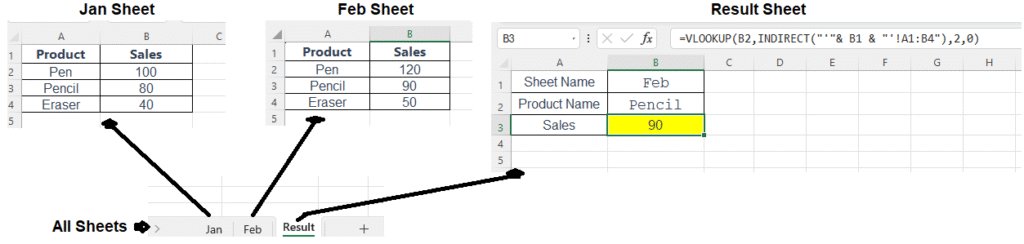
Example 4: VLOOKUP with INDIRECT Function in Excel for Dynamic Table Selection
Scenario:
You have monthly sales data on separate sheets — like Jan, Feb, Mar, etc.
You want to use VLOOKUP to search for a product’s sales data from the sheet selected by the user in a dropdown.
👉 Practice File: Click me to get Practice File
Also Read: VLOOKUP in Excel
Sheets Setup:
1️⃣ Sheet Jan (A2:B5)
| Product | Sales |
|---|---|
| Pen | 100 |
| Pencil | 80 |
| Eraser | 40 |
2️⃣ Sheet Feb (A2:B5)
| Product | Sales |
|---|---|
| Pen | 120 |
| Pencil | 90 |
| Eraser | 50 |
Main Sheet Setup:
| A | B |
|---|---|
| Sheet Name | Feb |
| Product Name | Pencil |
| Sales | [Formula] |
Formula:
=VLOOKUP(B2, INDIRECT("'" & B1 & "'!A1:B4"), 2, 0)
Explanation:
A1= Name of the sheet (e.g.,Jan,Feb)B2= Product name to search (e.g.,Pencil)INDIRECT("'" & A1 & "'!A2:B5")- Builds the reference like
'Feb'!A2:B5as a text string INDIRECTconverts it into an actual reference
- Builds the reference like
VLOOKUPsearches for the product in column A of that sheet and returns the matching value from column B
👉 Result:
If A1 = "Feb" and B2 = "Pencil" → It returns 90
Use Cases:
- Switching lookup sources (e.g., different months, regions, departments)
- Building interactive dashboards with dropdown-based data control
- Avoiding multiple
IForCHOOSEstatements for each sheet/table
Important Notes:
- The referenced sheet must exist, or you’ll get a
#REF!error. INDIRECTonly works with open workbooks — it can’t pull from closed external files.- Be careful with spelling — sheet names must exactly match the value in
A1.
Use Cases of INDIRECT Function in Excel
- Dynamic data lookup across multiple sheets
- Creating cascading or dependent dropdowns
- Building formulas that adapt based on user inputs
- Referring to ranges indirectly in charts or pivot tables
- Flexible summaries across months, departments, or regions
Limitations of INDIRECT Function in Excel
- ❌ Volatile Function: It recalculates on any worksheet change, which can slow down large workbooks
- ❌ Doesn’t update on cell move or rename (unlike normal cell references)
- ❌ Can break easily if the referenced sheet/range doesn’t exist
Tips for Using INDIRECT Safely
- Always validate that referenced cells/sheets exist
- Combine with
IFERRORto prevent errors:=IFERROR(INDIRECT(A1), "") - Avoid overusing it in very large datasets
Pro Tips: In the Next Post, you will learn INDIRECT with OFFSET Function to create a dependent dropdown list.
Also Read: IFERROR & IFNA in Excel
FAQs About INDIRECT Function in Excel
What's the difference between INDIRECT and ADDRESS?
ADDRESSreturns a reference as textINDIRECTconverts a text string into a real reference
Is INDIRECT case-sensitive?
No. Excel is not case-sensitive when evaluating cell addresses or sheet names.
What’s Next?
In the next post, we’ll learn about the Offset Function in Excel