
|
Getting your Trinity Audio player ready...
|
In real-world data analysis, data rarely comes from a single source.
You might have:
- A sales report in one file
- A customer master in another
- A product list somewhere else
To analyze this data properly, you must combine these datasets.
This is where the merge function in Pandas becomes extremely powerful.
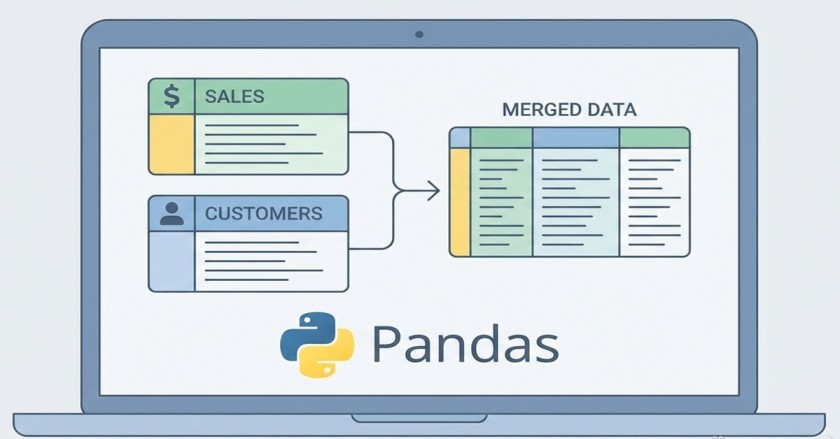
If you have ever worked with VLOOKUP, XLOOKUP, or JOINs in SQL, Pandas merge() will feel familiar—but even more flexible.
In this article, you’ll learn:
- What
merge()is and why it is used - Different types of joins with clear examples
- How to merge only required columns
- Real-life MIS and sales report use cases
- Common mistakes and best practices
This guide is written in easy, conversational language and uses practical sales report examples, making it perfect for beginners and intermediate learners.
What is merge function in Pandas?
The merge() function is used to combine two DataFrames based on a common column (key).
Simple Definition
merge()combines rows from two DataFrames where the values in a key column match.
Basic Syntax
pd.merge(left_df, right_df, on='key_column', how='type')
Why Do We Need merge()?
Imagine this real-life scenario:
- Sales Data → Order details
- Customer Data → Customer names and regions
Without merging:
- You see only customer IDs
- Reports look incomplete
- Business insights are limited
With merging:
- You get customer names, regions, and sales together
- Reports become meaningful
- Decision-making improves
Also Read: Cleaning Data in Pandas
Sample Data Used in This Article
Sales Data (sales_df)
| OrderID | CustomerID | Product | Quantity | UnitPrice |
|---|---|---|---|---|
| 1001 | C101 | Laptop | 1 | 1200 |
| 1002 | C102 | Mouse | 2 | 25 |
| 1003 | C103 | Chair | 1 | 350 |
Customer Data (customer_df)
| CustomerID | CustomerName | Region |
|---|---|---|
| C101 | Rahul | North |
| C102 | Anita | South |
| C104 | Vikram | East |
Basic Merge Example
Code
pd.merge(sales_df, customer_df, on='CustomerID')
Output
| OrderID | CustomerID | Product | Quantity | UnitPrice | CustomerName | Region |
|---|---|---|---|---|---|---|
| 1001 | C101 | Laptop | 1 | 1200 | Rahul | North |
| 1002 | C102 | Mouse | 2 | 25 | Anita | South |
🔹 Notice:
- Only matching
CustomerIDvalues appear - Order
1003is missing (no match in customer data)
This is called an Inner Join.
Types of Merge (Joins) in Pandas
1️⃣ Inner Join (how='inner')
Keeps only matching records from both DataFrames.
pd.merge(sales_df, customer_df, on='CustomerID', how='inner')
✔ Best when you want clean matched data only
2️⃣ Left Join (how='left') – Most Common in MIS
Keeps all rows from the left DataFrame, even if no match exists.
pd.merge(sales_df, customer_df, on='CustomerID', how='left')
Output Insight
- Sales without customer info get
NaN - No sales record is lost
✔ Ideal for reports and dashboards
3️⃣ Right Join (how='right')
Keeps all rows from the right DataFrame.
pd.merge(sales_df, customer_df, on='CustomerID', how='right')
✔ Useful when customer master is more important than sales
4️⃣ Outer Join (how='outer')
Keeps all records from both DataFrames.
pd.merge(sales_df, customer_df, on='CustomerID', how='outer')
✔ Useful for data validation and reconciliation
Merging on Different Column Names
Sometimes key columns have different names.
Example
sales_df→CustIDcustomer_df→CustomerID
pd.merge(
    sales_df,
    customer_df,
    left_on='CustID',
    right_on='CustomerID',
    how='left'
)
Selecting Specific Columns While Merging (Best Practice)
By default, merge() brings all columns from the right DataFrame.
But in real MIS reports, you usually need only a few columns.
Recommended Approach
pd.merge(
    sales_df,
    customer_df[['CustomerID', 'CustomerName', 'Region']],
    on='CustomerID',
    how='left'
)
Benefits
✔ Cleaner reports
✔ Faster performance
✔ Lower memory usage
Using map() Instead of merge() (Smart Alternative)
If you need only one column, map() is simpler and faster.
Example
Add customer name to sales report:
sales_df['CustomerName'] = sales_df['CustomerID'].map(
    customer_df.set_index('CustomerID')['CustomerName']
)
When to Use map()
- One-to-one relationship
- Only one column needed
- Large datasets
Handling Duplicate Columns After Merge
Sometimes both DataFrames have columns with the same name.
Solution: Use suffixes
pd.merge(
    df1,
    df2,
    on='CustomerID',
    suffixes=('_sales', '_customer')
)
Merging Multiple DataFrames
You can merge step by step:
merged = pd.merge(sales_df, customer_df, on='CustomerID', how='left')
merged = pd.merge(merged, product_df, on='ProductID', how='left')
Common Merge Mistakes (Avoid These)
❌ Forgetting key column
❌ Using inner join accidentally
❌ Merging large data without column selection
❌ Ignoring duplicate keys
❌ Not checking NaN after merge
Real-Life Use Cases
1️⃣ MIS Reports
Combine:
- Sales data
- Department master
- Employee master
2️⃣ Finance Reports
Merge:
- Transactions
- Vendor master
- Payment status
3️⃣ Government / Project Dashboards
Combine:
- Application data
- District master
- Status master
Benefits of Using merge()
- Powerful data integration
- SQL-like joins in Python
- Flexible and readable
- Essential for analytics and MIS roles
Challenges with merge()
- Can increase memory usage
- Requires clean keys
- Duplicate data can cause confusion
👉 These challenges are solved using best practices.
Best Practices for merge() in Pandas
✔ Always select required columns
✔ Prefer how='left' for reports
✔ Use map() when possible
✔ Validate data after merge
✔ Rename columns for clarity
✔ Check missing values
Merge vs Map (Quick Comparison)
| Feature | merge() | map() |
|---|---|---|
| Multiple columns | ✔ | ❌ |
| One column | ❌ | ✔ |
| Performance | Medium | Fast |
| Flexibility | High | Limited |
Conclusion
The merge function in Pandas is a core skill for anyone working with data—especially MIS professionals, analysts, and Python beginners.
Once you understand:
- Join types
- Column selection
- Real-life use cases
You can confidently build clean, meaningful, and professional reports.
If Excel joins feel limiting, Pandas merge() will completely change how you work with data.